
Lösung: ESP32 als Wifi-Client und Webserver
Steuerung eines GPIO des ESP32 mit über eine Webseite
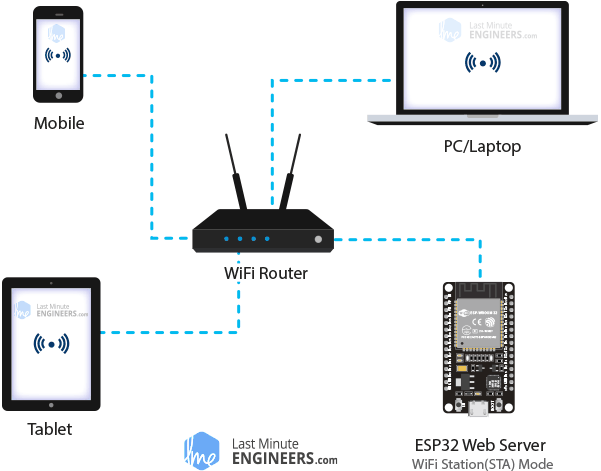
Der ESP32 als Wifi-Client (Quelle: In-depth: Create A Simple ESP32 Web Server In Arduino IDE (lastminuteengineers.com) (30.06.2022)
Auch der folgende Code stammt von:
In-depth: Create A Simple ESP32 Web Server In Arduino IDE (lastminuteengineers.com) (30.06.2022)
und wurde lediglich etwas vereinfacht, um ihn zu verkürzen.
Der ESP32 meldet sich hierbei als Wifi-Client an einem vorhandenen vorhandenen Netzwerk an.
Dafür muss der Code vor dem Flashen in den Zeilen 5 und 6 entsprechend angepasst werden.
/*Put your SSID & Password*/
const char* ssid = "yourSSID";  // Enter SSID here
const char* password = "yourPW";  //Enter Password here
Nach dem Start des Programms muss über den Seriellen Monitor mit 115200 Baud Übertragungsrate die IP-Adresse des ESP32 in Erfahrung gebracht werden:
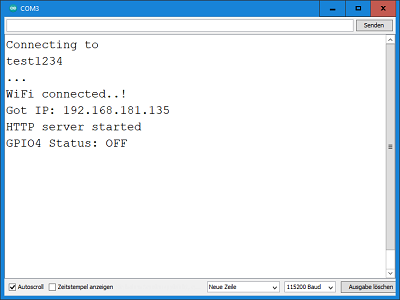
Ausgabe des seriellen Monitors
Mit einem Webclient kann nun die Webseite des ESP32 aufgerufen werrden.
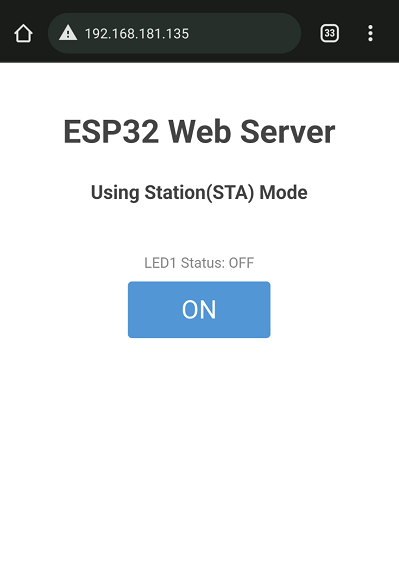
Screenshot eines Handys der Webseite
#include <WiFi.h>
#include <WebServer.h>

/*Put your SSID & Password*/
const char* ssid = "yourSSID";  // Enter SSID here
const char* password = "yourPW";  //Enter Password here

WebServer server(80);

uint8_t LED1pin = 4;
bool LED1status = LOW;

void setup() {
  Serial.begin(115200);
  delay(100);
  pinMode(LED1pin, OUTPUT);

  Serial.println("Connecting to ");
  Serial.println(ssid);

  //connect to your local wi-fi network
  WiFi.begin(ssid, password);

  //check wi-fi is connected to wi-fi network
  while (WiFi.status() != WL_CONNECTED) {
    delay(1000);
    Serial.print(".");
  }
  Serial.println("");
  Serial.println("WiFi connected..!");
  Serial.print("Got IP: ");
  Serial.println(WiFi.localIP());

  server.on("/", handle_OnConnect);
  server.on("/led1on", handle_led1on);
  server.on("/led1off", handle_led1off);
  server.onNotFound(handle_NotFound);

  server.begin();
  Serial.println("HTTP server started");
}

void loop() {
  server.handleClient();
  if(LED1status) {
    digitalWrite(LED1pin, HIGH);
  }
  else {
    digitalWrite(LED1pin, LOW);}
}

void handle_OnConnect() {
  LED1status = LOW;
  Serial.println("GPIO4 Status: OFF");
  server.send(200, "text/html", SendHTML(LED1status));
}

void handle_led1on() {
  LED1status = HIGH;
  Serial.println("GPIO4 Status: ON");
  server.send(200, "text/html", SendHTML(true));
}

void handle_led1off() {
  LED1status = LOW;
  Serial.println("GPIO4 Status: OFF");
  server.send(200, "text/html", SendHTML(false));
}

void handle_NotFound(){
  server.send(404, "text/plain", "Not found");
}

String SendHTML(uint8_t led1stat){
  String ptr = "<!DOCTYPE html> <html>\n";
  ptr +="<head><meta name=\"viewport\" content=\"width=device-width, initial-scale=1.0, user-scalable=no\">\n";
  ptr +="<title>LED Control</title>\n";
  ptr +="<style>html { font-family: Helvetica; display: inline-block; margin: 0px auto; text-align: center;}\n";
  ptr +="body{margin-top: 50px;} h1 {color: #444444;margin: 50px auto 30px;} h3 {color: #444444;margin-bottom: 50px;}\n";
  ptr +=".button {display: block;width: 80px;background-color: #3498db;border: none;color: white;padding: 13px 30px;text-decoration: none;font-size: 25px;margin: 0px auto 35px;cursor: pointer;border-radius: 4px;}\n";
  ptr +=".button-on {background-color: #3498db;}\n";
  ptr +=".button-on:active {background-color: #2980b9;}\n";
  ptr +=".button-off {background-color: #34495e;}\n";
  ptr +=".button-off:active {background-color: #2c3e50;}\n";
  ptr +="p {font-size: 14px;color: #888;margin-bottom: 10px;}\n";
  ptr +="</style>\n";
  ptr +="</head>\n";
  ptr +="<body>\n";
  ptr +="<h1>ESP32 Web Server</h1>\n";
  ptr +="<h3>Using Station(STA) Mode</h3>\n";

  if(led1stat) {
    ptr +="<p>LED1 Status: ON</p><a class=\"button button-off\" href=\"/led1off\">OFF</a>\n";
  }
  else {
    ptr +="<p>LED1 Status: OFF</p><a class=\"button button-on\" href=\"/led1on\">ON</a>\n";
  }

  ptr +="</body>\n";
  ptr +="</html>\n";
  return ptr;
}