
Possible Solution: Exchange drive
The project folders of the students are to be created on the file server FSX1 under D:\Projects.
To ensure maximum flexibility, a share Projects$ has to be created for \\FSX1\Projects.
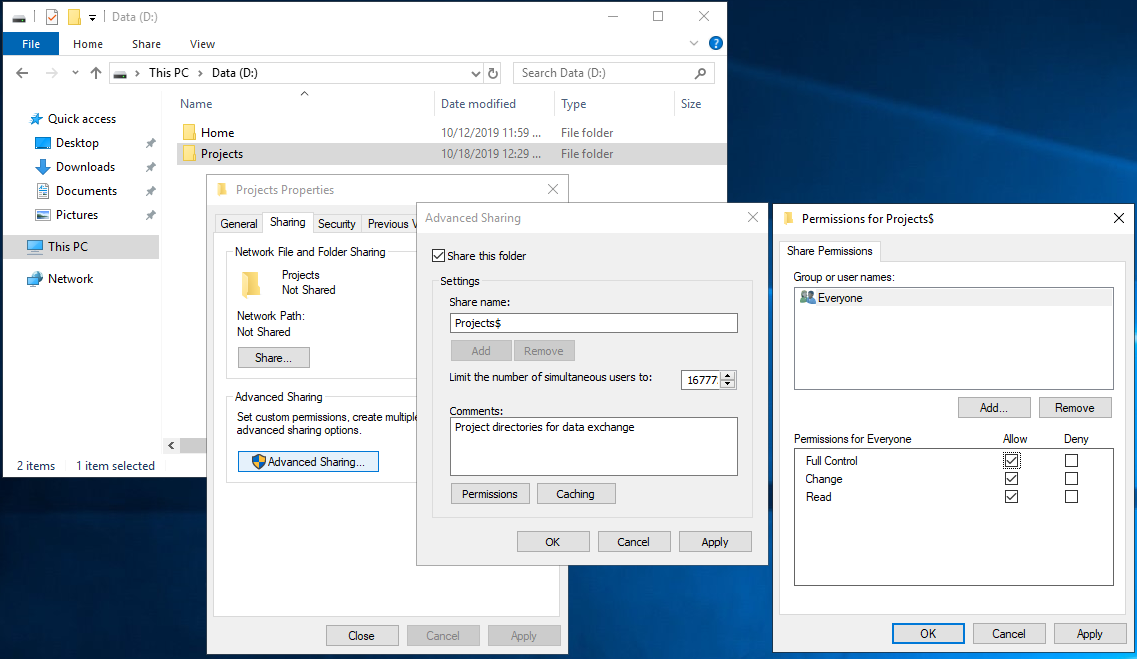
Creation of share Projects$
The $ at the end of the share name hides the share from people browsing.
The share permissions for the folder are changed to “Full Control”. On the one hand this ensures maximum flexibility, on the other hand the authorizations are restricted by NTFS permissions.
Groups
A shared resources (e.g. directories) do not give users individual permissions to access it, i.e. users are not entered individually in the security settings of a resource. Instead, for reasons of flexibility, only groups (more precisely: domain
local groups) are granted access.
Global Groups
Global groups contain AD user accounts or other global groups located in the same domain. Global groups are used to describe roles of their members, such as "Students" or "Teachers". They are known - that's why they are called global - to all resources
within the overall structure.
However, resource security descriptors can only contain global groups of the same domain, so you cannot configure access to resources for members of global groups of other domains in the tree. Therefore, global groups are generally not used to assign rights and permissions - rather, a global group is made a member of a domain locale.
Domaine Local Groups
The resource permissions are only granted to local domain groups.Local domain groups exist only within the respective domain and do not describe the role of their members, but the access rights and authorizations that they offer. Therefore, as best practices, they do not have any users as members, but only other groups, such as global ones.
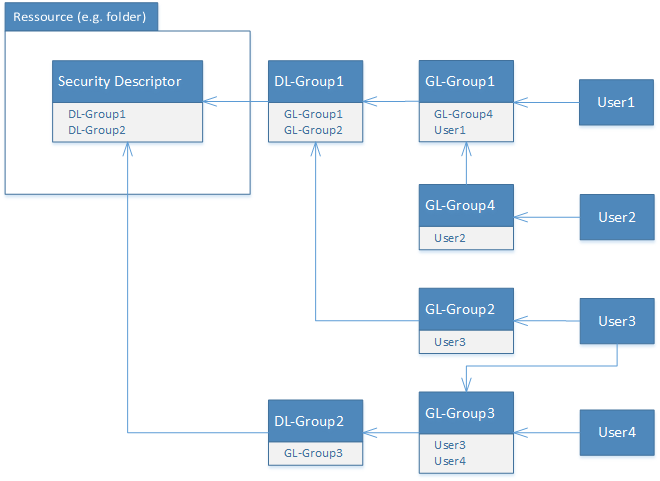
Example of nested groups with users
AGDLP (an abbreviation of "account, global, domain local, permission") briefly summarizes Microsoft's recommendations using nested groups in an Active Directory domain: User and computer accounts are members of global groups that represent business roles, which are members of domain local groups that describe resource permissions or user rights assignments.
https://en.wikipedia.org/wiki/AGDLP (18.10.2019)
1. Manual creation of Global Groups
Before programmatically creating network resources with appropriate groups and permissions, the following nested Global Groups should exist:
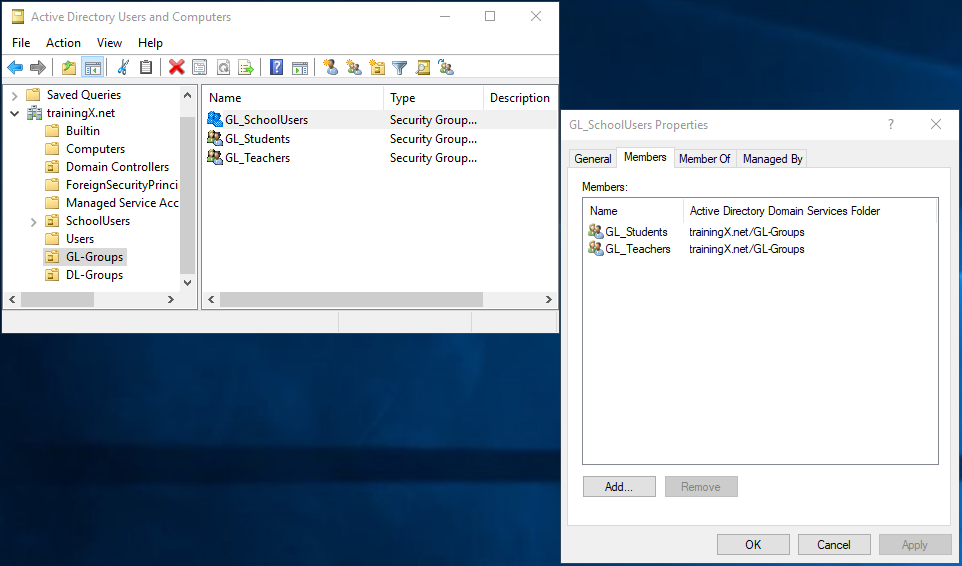
Global Group GL_SchoolUsers with nested global groups GL_Students and GL_Teachers
To find all groups easily, two OUs GL-Groups and DL-Groups are created, in which the global or domain local groups are stored. To find all groups easily, two OUs GL-Groups and DL-Groups are created, in which the global or domain
local groups are stored.
For further identification, all global groups are assigned either the prefix GL_ or DL_.
Settings.py
Some additional settings are needed:
1 2 3 4 5 6 7 8 9 10 11 12 13 14 |
class Settings: domainName = "trainingX.net" dnSchool = "dc=trainingX, dc=net" # Distinguished Name of domaine dnStudents = "ou=Students, ou=SchoolUsers, " + dnSchool # Distinguished Name of OU Students dnGLGroups = "ou=GL-Groups, " + dnSchool # Distinguished Name of OU GL- and DL-Groups dnDLGroups = "ou=DL-Groups, " + dnSchool nameFileserver = "FSX1" shareHomeStudents = "\\\\"+nameFileserver+"\\HomeStudents$" # "\" must be escaped by another "\" homeDrive = "H:" dirProjectsStudents = "\\\\"+nameFileserver+"\\Projects$" # student's projects base dir pathProjectsStudents = "D:\\Projects" projectDrive = "P:" |
Fileserver.py
Class Fileserver has got four additional methods. One method each for creating and deleting the project directory for data exchange within a school class and one method each for creating and deleting the respective share on it:
1 2 3 4 5 6 7 8 9 10 11 12 13 14 15 16 17 18 19 20 21 22 23 24 25 26 27 28 29 30 31 32 33 34 35 36 37 38 39 40 41 42 43 44 45 46 47 48 49 50 51 52 53 54 55 56 57 58 59 60 61 62 63 64 65 66 67 68 69 70 71 72 73 74 75 76 77 78 79 80 81 |
from Settings import Settings import os import shutil import win32security, win32netcon, win32net, ntsecuritycon, win32file class Fileserver(): def createHomeDirStudent(self, username): homeDir = Settings.shareHomeStudents + "\\" + username if os.path.exists(homeDir) == False: # if home dir does not exist os.mkdir(homeDir) # make dir # How to set DACLs: # https://stackoverflow.com/questions/26465546/how-to-authorize-deny-write-access-to-a-directory-on-windows-using-python user, domain, type = win32security.LookupAccountName("", Settings.domainName + "\\" + username) # Find the SIDs for user of home dir sd = win32security.GetFileSecurity(homeDir, win32security.DACL_SECURITY_INFORMATION) # Find the DACL part of the Security Descriptor for the folder dacl = sd.GetSecurityDescriptorDacl() # get security descriptor DACL dacl.AddAccessAllowedAceEx(win32security.ACL_REVISION, 3, 2032127, user) # add full control to folder, subfolder and files ACE to DACL sd.SetSecurityDescriptorDacl(1, dacl, 0) # Put new (extended) DACL into the Security Descriptor, win32security.SetFileSecurity(homeDir, win32security.DACL_SECURITY_INFORMATION, sd) # update the folder with the updated Security Descriptor def deleteHomeDirStudent(self, username): homeDir = Settings.shareHomeStudents + "\\" + username if os.path.exists(homeDir) == True: # if home dir exists #os.system('rmdir /S /Q "{}"'.format(homeDir)) shutil.rmtree(homeDir, ignore_errors=True) # remove dir with content recursively def createProjectDirStudent(self, nameSchoolClass): projectDir = Settings.dirProjectsStudents + "\\" + nameSchoolClass if os.path.exists(projectDir) == False: # if project dir does not exist os.mkdir(projectDir) # make dir # Find the SID of group which uses project dir group, domain, type = win32security.LookupAccountName("", Settings.domainName + "\\DL_" + nameSchoolClass + "_F") # Find the DACL part of the Security Descriptor for the folder sd = win32security.GetFileSecurity(projectDir, win32security.DACL_SECURITY_INFORMATION) # get security descriptor DACL dacl = sd.GetSecurityDescriptorDacl() # add full access of group to folder, subfolder and files ACE to DACL dacl.AddAccessAllowedAceEx(win32security.ACL_REVISION, 3, 2032127, group) # put new (extended) DACL into the Security Descriptor sd.SetSecurityDescriptorDacl(1, dacl, 0) # update the folder with the updated Security Descriptor win32security.SetFileSecurity(projectDir, win32security.DACL_SECURITY_INFORMATION, sd) def deleteProjectDirStudent(self, nameSchoolClass): projectDir = Settings.dirProjectsStudents + "\\" + nameSchoolClass if os.path.exists(projectDir) == True: # if project dir exists shutil.rmtree(projectDir, ignore_errors=True) # remove dir with content recursively def addShareProjectDirStudent(self, nameSchoolClass): sd = win32security.SECURITY_DESCRIPTOR() # get the "well known" SID for the administrators group subAuths = ntsecuritycon.SECURITY_BUILTIN_DOMAIN_RID, ntsecuritycon.DOMAIN_ALIAS_RID_ADMINS sidAdmins = win32security.SID(ntsecuritycon.SECURITY_NT_AUTHORITY, subAuths) # Find the SID of dl group which uses share to project dir group, domain, type = win32security.LookupAccountName("", Settings.domainName + "\\DL_" + nameSchoolClass + "_F") # Set ACL, giving DL group of school class and admin full access dacl = win32security.ACL(128) dacl.AddAccessAllowedAce(win32file.FILE_ALL_ACCESS, sidAdmins) dacl.AddAccessAllowedAce(win32file.FILE_ALL_ACCESS, group) sd.SetSecurityDescriptorDacl(1, dacl, 0) sharename = nameSchoolClass + "$" # hide share shinfo={} # shinfo struct shinfo['netname'] = sharename shinfo['type'] = win32netcon.STYPE_DISKTREE shinfo['remark'] = 'Project share for schoolclass %s' % (sharename,) shinfo['permissions'] = 0 shinfo['max_uses'] = -1 # unlimited users shinfo['security_descriptor'] = sd shinfo['current_uses'] = 0 shinfo['path'] = Settings.pathProjectsStudents + "\\" + nameSchoolClass shinfo['passwd'] = '' win32net.NetShareAdd("\\\\" + Settings.nameFileserver,502,shinfo) # add share def deleteShareProjectDirStudent(self, nameSchoolClass): win32net.NetShareDel("\\\\" + Settings.nameFileserver, nameSchoolClass + "$") |
Ldap.py
In the createSchoolClass() method, the necessary groups, the project directory and the share of a school class are now additionally created and linked and in the method createStudent() this user is added to the respective global
group of its school class.
deleteSchoolClass() clears everything up again:
1 2 3 4 5 6 7 8 9 10 11 12 13 14 15 16 17 18 19 20 21 22 23 24 25 26 27 28 29 30 31 32 33 34 35 36 37 38 39 40 41 42 43 44 45 46 47 48 49 50 51 52 53 54 55 56 57 58 59 60 61 62 63 64 65 66 67 68 69 70 71 72 73 74 75 76 77 78 79 80 81 82 83 84 85 86 87 88 89 90 91 92 93 94 95 96 97 98 99 100 101 102 103 104 105 106 107 108 109 110 111 112 113 114 115 116 117 118 119 120 121 122 123 124 125 126 127 128 |
from abc import ABC, abstractmethod # import Abstract Base Classes (ABCs) class AbstractLDAP(ABC): def __init__(self, dnStudents): self._dnStudents = dnStudents super().__init__() @abstractmethod def createStudent(self, username, nameSchoolClass): pass @abstractmethod def deleteStudent(self, username, nameSchoolClass): pass @abstractmethod def createSchoolClass(self, nameSchoolClass): pass @abstractmethod def deleteSchoolClass(self, nameSchoolClass): pass from pyad import * from Settings import Settings from Fileserver import * class PyAD(AbstractLDAP): def createStudent(self, username, surname, firstname, password, dateOfBirth, nameSchoolClass): query = adquery.ADQuery() cnUnique = False numChar = 0 while(cnUnique == False): query.execute_query(attributes = ["cn"], # query: does cn already exist where_clause=("cn = '" + username + "'"), base_dn = Settings.dnSchool) if query.get_row_count() > 0: # yes: add character numChar = numChar + 1 if(numChar <= len(firstname)): # if the character set of the first name is large enough username = surname + firstname[:numChar] # add number of characters from beginning of first ame else: # if the character set of the first name is used up username = surname + firstname + (numChar - len(firstname)) * 'x' # added number of 'x' else: # cn is unique => create user cnUnique = True ouSchoolClass = pyad.adcontainer.ADContainer("ou="+nameSchoolClass+", "+self._dnStudents, adsi_ldap_com_object=None, options={}) student = aduser.ADUser.create(username , ouSchoolClass , password=password , upn_suffix=None , enable=True , optional_attributes={"sn":surname , "givenName":firstname , "employeeID":dateOfBirth # using existing employeeId attribute is easier than extending AD scheme , "description":"Student" , "pwdLastSet":0 # password must be changed on first login , "homeDrive":Settings.homeDrive # set home drive , "homeDirectory":Settings.shareHomeStudents + "\\" + username}) # set home directory # put new student in global group of its school class gl_groupSchoolClass = pyad.from_dn("cn=GL_" + nameSchoolClass + ", " + Settings.dnGLGroups) gl_groupSchoolClass.add_members([student]) return username # return possibly modified username def deleteStudent(self, surname, firstname, dateOfBirth, nameSchoolClass): # print("delete ", surname, firstname, dateOfBirth, nameSchoolClass) dnSchoolClass = "ou="+nameSchoolClass + ", " + self._dnStudents query = adquery.ADQuery() query.execute_query(attributes = ["cn"], where_clause=("sn = '" + surname + "' and givenName = '" + firstname + "' and employeeID = '" + dateOfBirth + "'"), base_dn = dnSchoolClass) if query.get_row_count() >= 1: # if student exists => delete it ouSchoolClass = pyad.adcontainer.ADContainer(dnSchoolClass, adsi_ldap_com_object=None, options={}) fs = Fileserver() for row in query.get_results(): ouSchoolClass.from_cn(row["cn"]).delete() fs.deleteHomeDirStudent(row["cn"]) def createSchoolClass(self, nameSchoolClass): query = adquery.ADQuery() query.execute_query(attributes = ["distinguishedName"], where_clause=("ou = '" +nameSchoolClass + "'"), base_dn = self._dnStudents) if query.get_row_count() == 0: # if school class not yet exists => create ouStudents = pyad.adcontainer.ADContainer(self._dnStudents, adsi_ldap_com_object=None, options={}) ouStudents.create_container(nameSchoolClass) # create a new global group for students of school class ouGLgroups = pyad.adcontainer.ADContainer.from_dn(Settings.dnGLGroups) gl_groupSchoolClass = ouGLgroups.create_group("GL_" + nameSchoolClass , security_enabled=True , scope='GLOBAL' , optional_attributes = {"description":"Students of school class " + nameSchoolClass}) # create a new domaine local for project dir of students ouDLgroups = pyad.adcontainer.ADContainer.from_dn(Settings.dnDLGroups) dl_groupSchoolClass = ouDLgroups.create_group("DL_" + nameSchoolClass + "_F" , security_enabled=True , scope='LOCAL' , optional_attributes = {"description":"Full access for project dir of students of school class " + nameSchoolClass}) gl_groupStudents = pyad.from_dn("cn=GL_Students, " + Settings.dnGLGroups) # put global group of school class gl_groupStudents.add_members([gl_groupSchoolClass]) # into global group of all students "GL_Students" and dl_groupSchoolClass.add_members([gl_groupSchoolClass]) # into domaine local group of students of a school class # create folder and share fs = Fileserver() fs.createProjectDirStudent(nameSchoolClass) fs.addShareProjectDirStudent(nameSchoolClass) def deleteSchoolClass(self, nameSchoolClass): dnSchoolClass = "ou="+nameSchoolClass+", "+ self._dnStudents query = adquery.ADQuery() query.execute_query(attributes = ["distinguishedName"], where_clause=("ou = '" +nameSchoolClass + "'"), base_dn = self._dnStudents) if query.get_row_count() == 1: # if school class exists query = adquery.ADQuery() query.execute_query(attributes = ["sn", "givenName", "employeeID"], # employeeID holds date of birth where_clause=("cn = '*'"), base_dn = dnSchoolClass) if query.get_row_count() > 0: # if school class not empty for row in query.get_results(): # delete students self.deleteStudent(row["sn"], row["givenName"], row["employeeID"], nameSchoolClass) ouSchoolClass = pyad.adcontainer.ADContainer(dnSchoolClass, adsi_ldap_com_object=None, options={}) ouSchoolClass.delete() # delete school class ou # delete global and domaine local groups of school class gl_groupSchoolClass = pyad.from_dn("cn=GL_" + nameSchoolClass + ", " + Settings.dnGLGroups) gl_groupSchoolClass.delete() dl_groupSchoolClass = pyad.from_dn("cn=DL_" + nameSchoolClass + "_F" + ", " + Settings.dnDLGroups) dl_groupSchoolClass.delete() # delete folder and share fs = Fileserver() fs.deleteProjectDirStudent(nameSchoolClass) fs.deleteShareProjectDirStudent(nameSchoolClass) |
The above listed code in the method createSchoolClass()
- creates a global group
GL_nameOfSchoolClassin the ouGL-Groups, - puts this global group of school class into the global group
GL_Students, - creates a domain local group
DL_nameOfSchoolClassin the ouDL-Groups, - puts the global group
GL_nameOfSchoolClassinto the domain local groupDL_nameOfSchoolClass - creates a project directory
\\FSX1\Projects\nameOfSchoolClasson the fileserver and - creates a share
\\FSX1\nameOfSchoolClass$on the fileserver, which gets the appropriate permissions.
testExchangeDrive.py
demonstrates the use of the classes:
1 2 3 4 5 6 7 8 9 10 11 12 13 |
from School import * from User import * schoolClass = SchoolClass("school_class1",[]) schoolClass2 = SchoolClass("school_class2",[]) student = Student("Miller", "Sam", "11.11.2000", schoolClass) student = Student("Meyer", "Sam", "11.11.2000", schoolClass2) schoolClass.addToLDAP() schoolClass2.addToLDAP() #schoolClass.deleteFromLDAP() #schoolClass2.deleteFromLDAP() |
studentsLogon.vbs
Logon VBScript for mapping exchange drive P: to project directory
Mapping the drive of the programmatically created share of the project directory of the school class itself is not a problem (see last command below).
The main problem is to find the school class name of a student, because the share is called like
the school class. For this purpose:
- All groups in which the student is located are determined.
- The list of groups is run through and the prefix
GL_is searched in the name of the groups until the global group of the school classGL_NameOfSchoolClasswhere the logging student is located is found. - The prefix
GL_is removed, resulting in the name of the share.
1 2 3 4 5 6 7 8 9 10 11 12 13 14 15 16 17 18 19 20 21 22 23 24 25 26 27 28 29 30 31 32 33 34 35 36 37 38 39 40 41 42 43 | '******************************************************************** 'Login script for students: studentsLogon.vbs 'Version 1.0 'Wolfhard Eick 10/2019 '-------------------------------------------------------------------- 'Settings ' fileserverStudents = "FSX1" 'File server of students domain = "trainingX.net" '-------------------------------------------------------------------- 'get school class of student ' Set WshNetwork = WScript.CreateObject("WScript.Network") Do While wshNetwork.username = "" 'wait until username of student WScript.Sleep 250 'is available Loop username = WshNetwork.UserName 'get actual username Set groups = GetObject("WinNT://" & domain & "/" & username) 'get group memberships of student For Each group In groups.Groups 'iterate over groups If left(group.Name,3) = "GL_" Then 'get gl-group of school class strLength = len(group.Name) schoolclass = mid(group.Name,4,strLength) 'extract name of school class end if Next 'MsgBox username & " is a member of school class " & schoolclass, vbOkOnly, "Membership of school class" '-------------------------------------------------------------------- 'map drive ' On Error Resume Next wshNetwork.RemoveNetworkDrive "P:", True, True 'delete an eventually existing mapping wshNetwork.MapNetworkDrive "P:", "\\" & fileserverStudents & "\" & schoolclass & "$" 'map drive |
Configure the GPO for Windows logon scripts to run
- Open the Group Policy Management console
- From the Server Manager, navigate to Tools > Group Policy Management.
- Expand the Domains tree, right-click a
OU Students, and select "Create a GPO in this domain and Link it here ..." - In the New GPO dialog box, give the GPO the descriptive name
StudentsLogonPolicy. - Locate the new GPO in the Domains tree (under the domain or OU that you selected above), right-click it, and select "Edit".
- If a pop-up message appears when you click on the GPO name, click OK.
- In the Group Policy Management Editor, navigate to User Configuration > Policies > Windows Settings > Scripts (Logon/Logoff), then double-click "Logon in the right pane".
- In the Logon Properties window, click "Show Files".
- A folder whose name ends in "User\Scripts\Logon\" is displayed.
- Copy your logon script files into this folder.
- In the Logon Properties window, click Add.
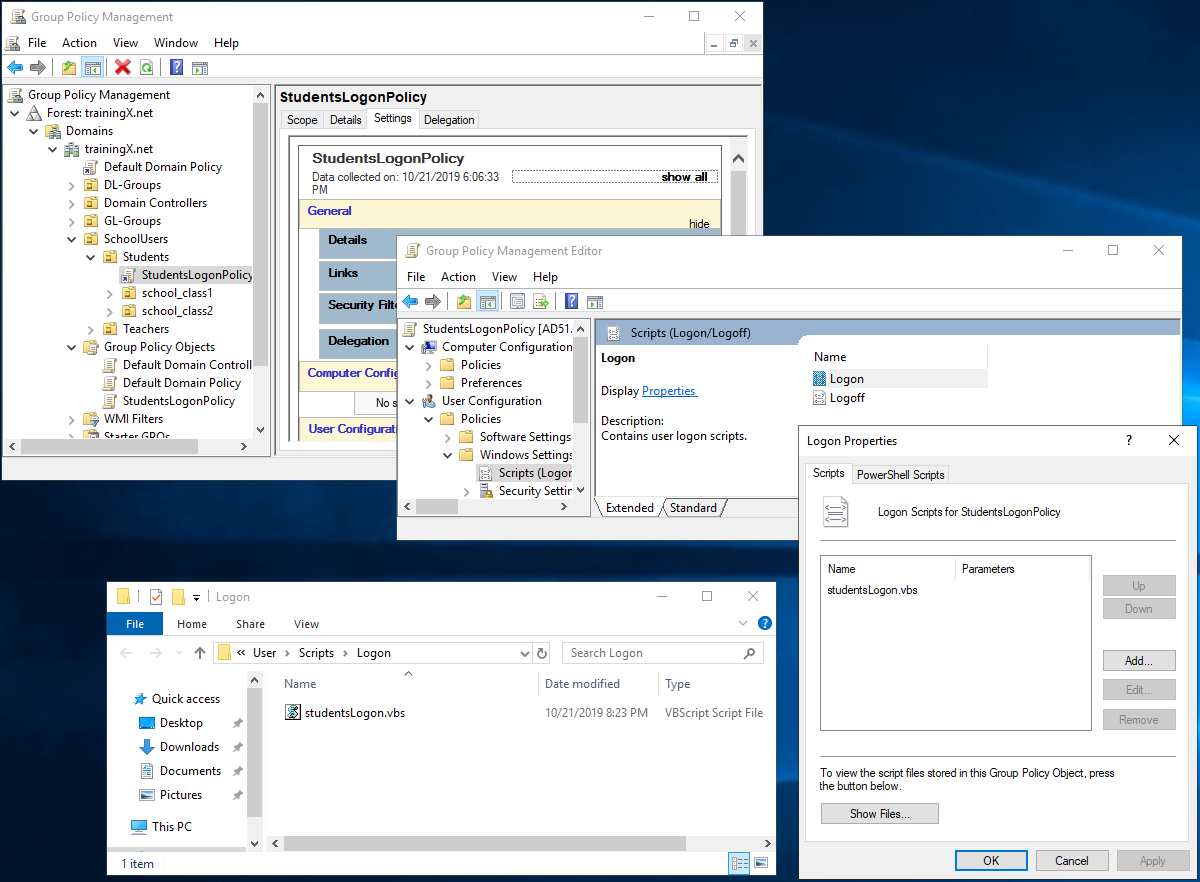
- Click "Browse to open the logon script directory", then select your logon script file and click "OK".
- Verify that the logon script now appears in the list on the Logon Properties window.
- Close the Group Policy Management Editor window for your GPO, then close the Group Policy Management window.
Source: https://www.websense.com/content/support/library/web/v78/logon_agent/la_configure_scripts.aspx (21.10.2019)
The administrator can access Miller's home directory via the projects$ share:
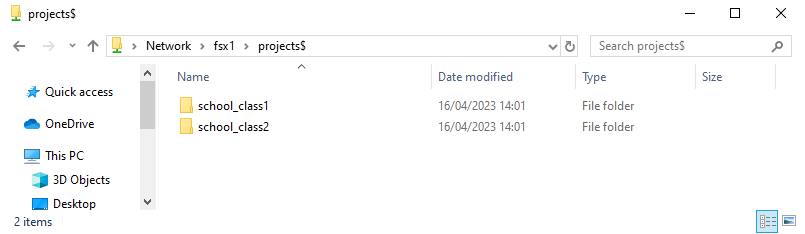
Project directorie of school classes